From menu surface to real restaurant workflow
A digital menu becomes most valuable when it does not stop at presentation. When the guest menu, service view, and kitchen mode fit together, the full path from guest to kitchen becomes much clearer.
That is the difference between a polished menu and a more useful digital restaurant workflow.
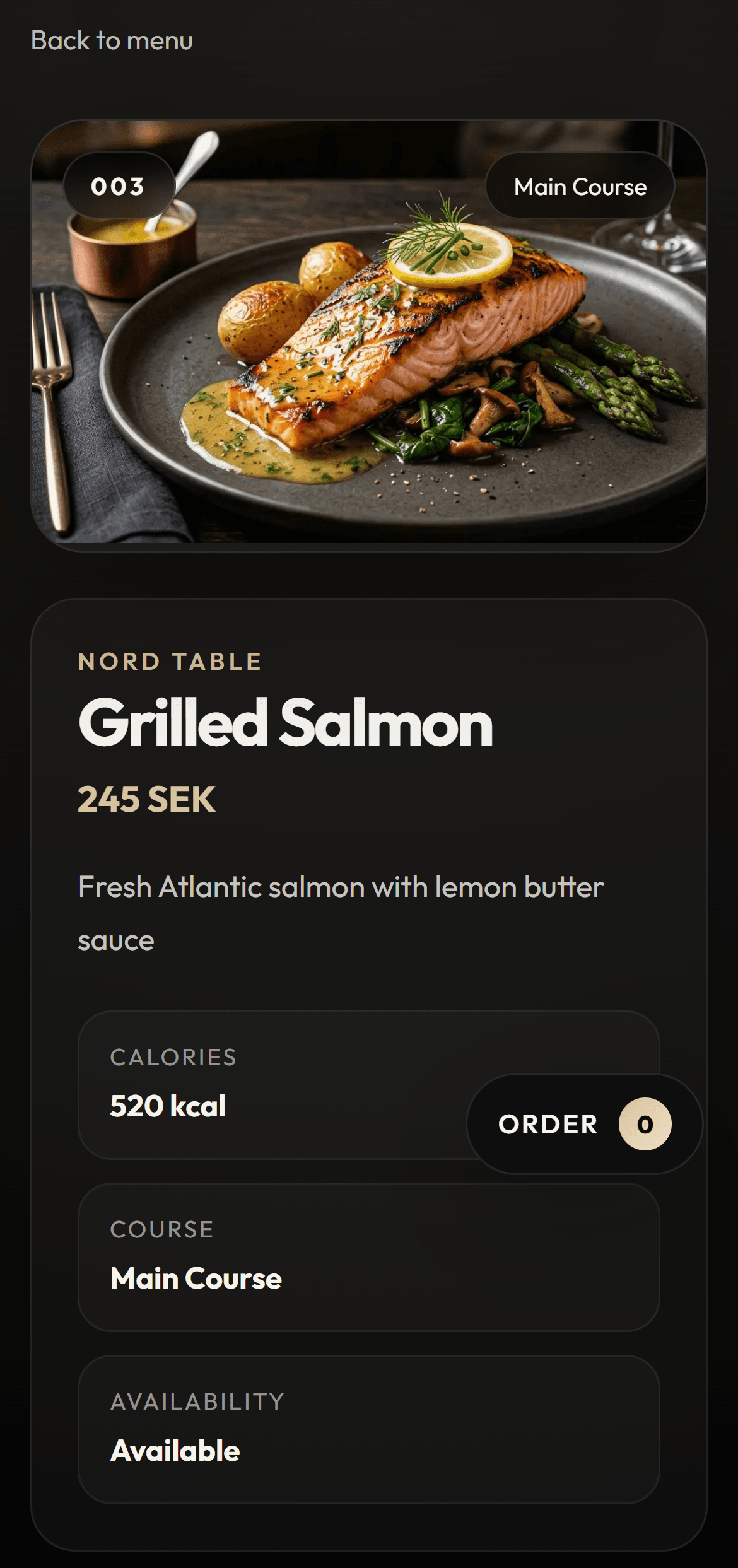
Three parts that matter in practice
- A guest menu that makes it easy to browse dishes, prices, and details from the table.
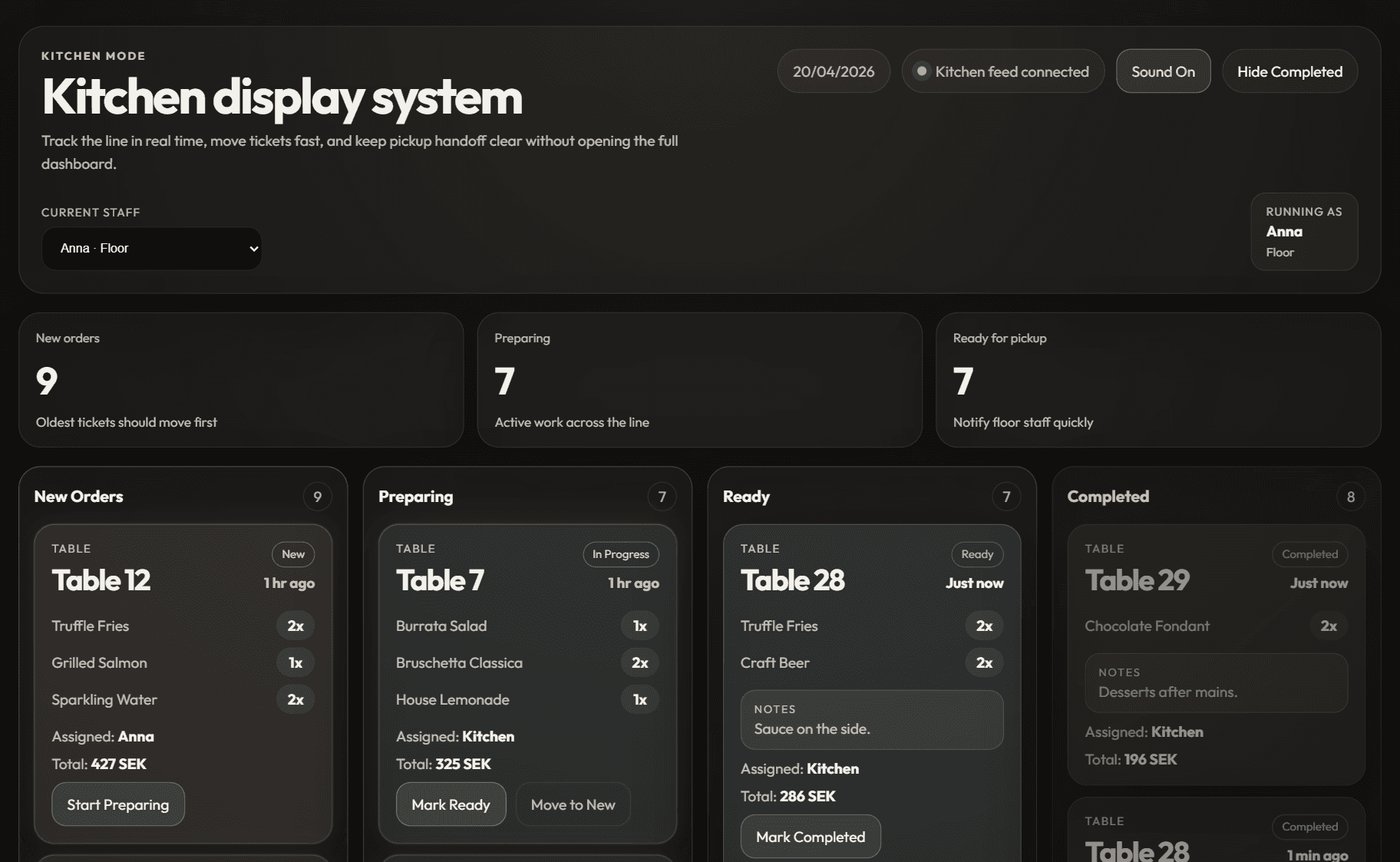
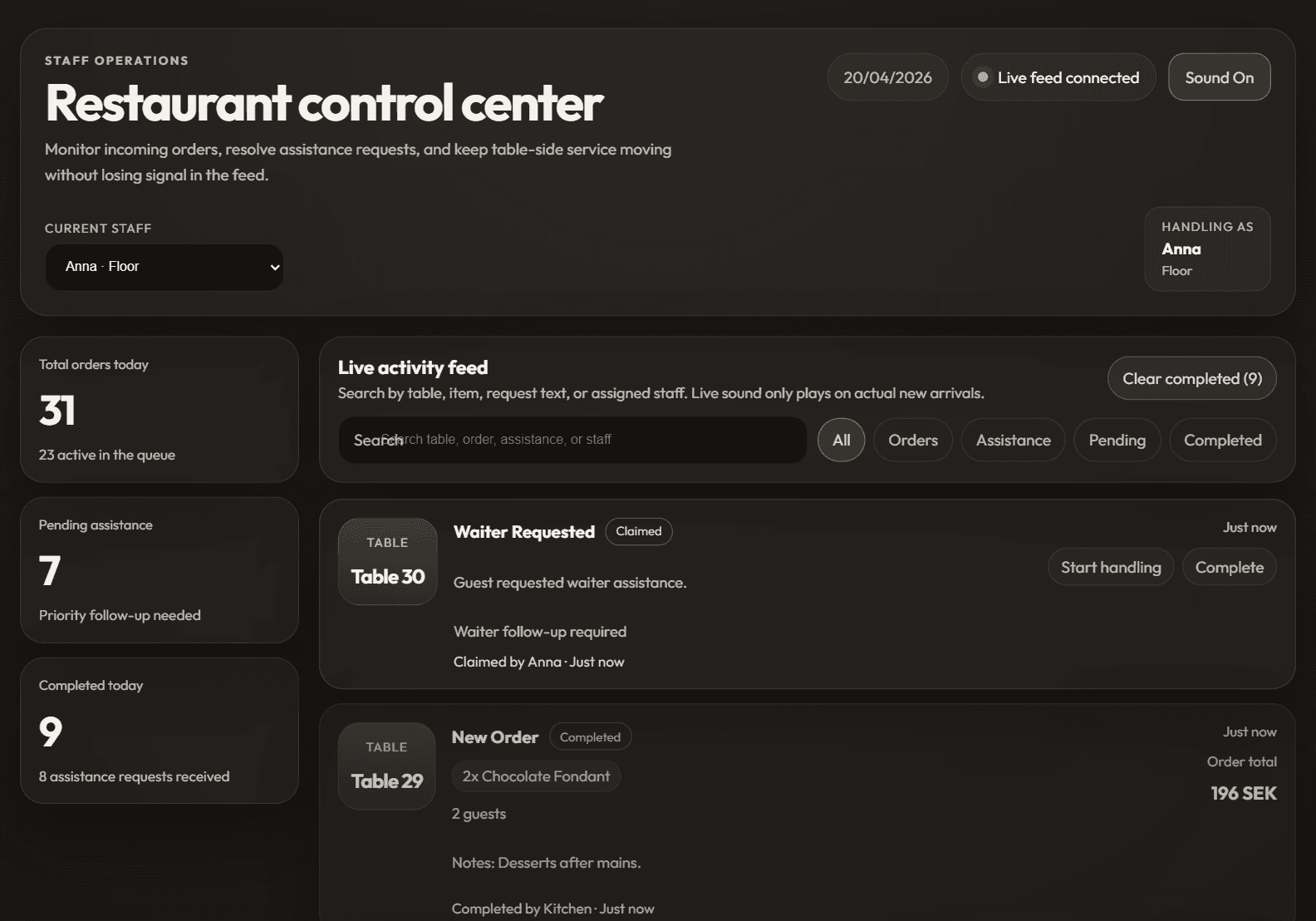
- An admin view with live visibility into orders, service requests, and status.
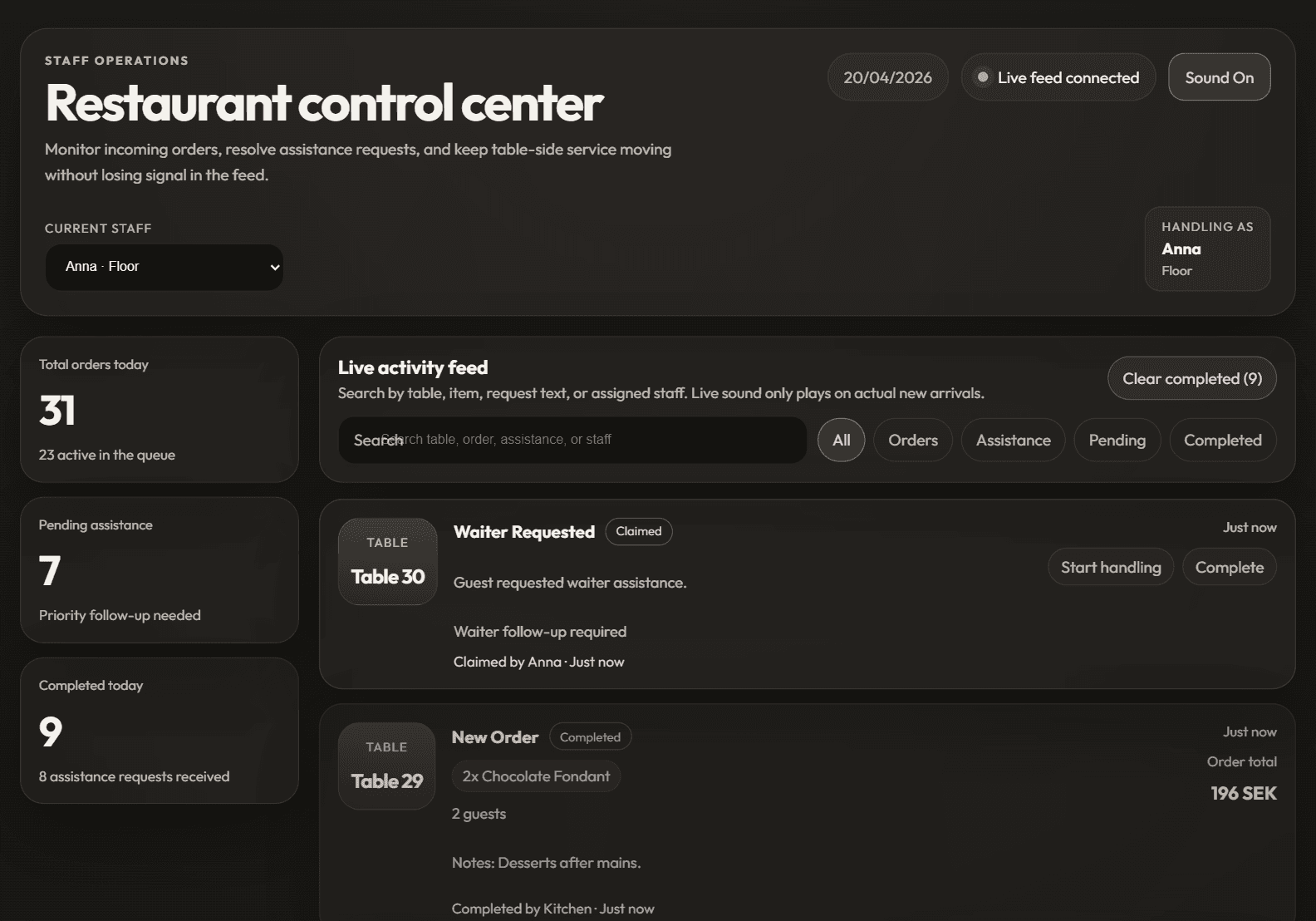
- A kitchen display system where new, in-progress, and ready orders are easier to follow.
In-article demo
See how this works in practice
This kind of article is about operations, so it shows admin and kitchen instead of only the guest view.
Order
See how you manage orders
See how orders and service requests are handled when the flow becomes clearer.
See how you manage ordersPreview
Admin dashboard
Kitchen
See how the kitchen receives orders
See how the kitchen receives the next step without extra handoffs.
See how the kitchen receives ordersPreview
Kitchen display
Why this reduces friction
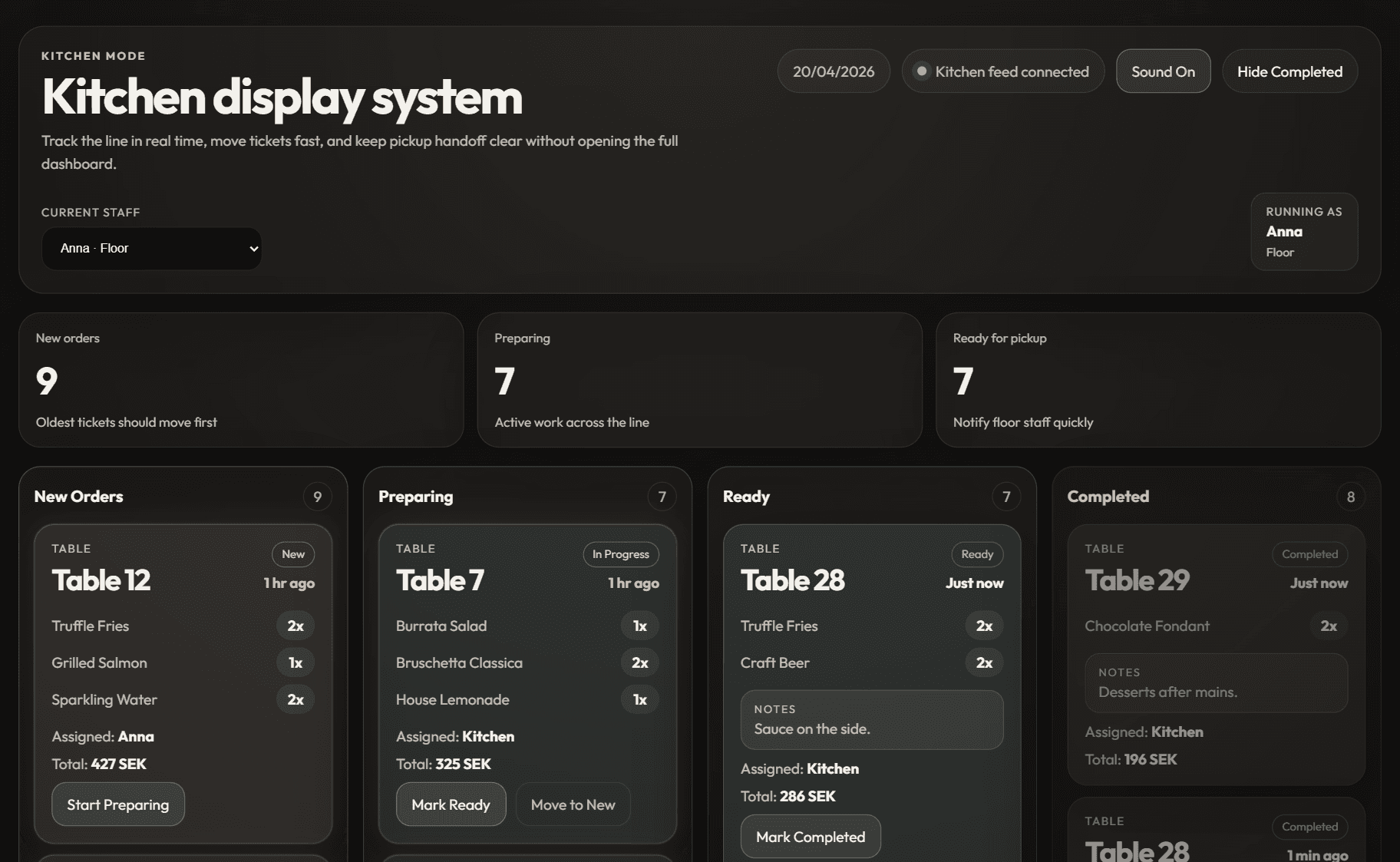
When information no longer has to pass through multiple manual steps, teams can move faster without losing structure. Guests get a clearer start, service gets stronger visibility, and the kitchen gets calmer prioritization.
Try each part live
If you want to understand the value quickly, the best way is to open each part of the flow separately and see how the guest menu, admin, and kitchen mode fit together.
Live demo
Open the parts that show operations most clearly
See how the order continues after the guest has made a choice.
Order
See how you manage orders
See how orders and service requests are handled when the flow becomes clearer.
See how you manage ordersPreview
Admin dashboard
Kitchen
See how the kitchen receives orders
See how the kitchen receives the next step without extra handoffs.
See how the kitchen receives ordersPreview
Kitchen display
FAQ
Do we need to implement the full flow at once?
No. Many restaurants start with the menu and QR layer, then expand into admin or kitchen flow later.
How is this different from a standard digital menu?
The focus is the full operational path from guest to kitchen, not only how the menu looks on mobile.
Is the admin view built for tablet use?
Yes. It is intended to work well in a tablet-friendly service environment where the team needs to act quickly.
Conversion CTA
See how the digital menu works in practice
Move into the main digital menu page to understand the offer clearly. Once it fits, you can book a demo.
Next step
Try the operations flow before you book
Open admin and kitchen live if you want to understand the workflow faster before contacting us.
Order
See how you manage orders
See how orders and service requests are handled when the flow becomes clearer.
See how you manage ordersPreview
Admin dashboard
Kitchen
See how the kitchen receives orders
See how the kitchen receives the next step without extra handoffs.
See how the kitchen receives ordersPreview
Kitchen display